
10016
Tool Categories
Text Tools
Image Tools
CSS Tools
Coding Tools
Color Tools
Social Media Tools
Miscellaneous Tools

Easily find text converters, image editors, and developer utilities.

Image Average Color Finder

Find the average and dominant colors of an image while ignoring transparency.

Upload an image to find its average color

Comments

U

Similar Image Tools

See All

Image Color Picker

Pick any color from an image using an eyedropper tool.

Image Color Extractor

Extract all colors from an image and get detailed color codes.

Image Filters

Apply various filters to images and adjust color balance easily.

What is Online Image Average Color Finder?

Image Average Color Finder is a free online tool for finding average color in an image by interpolating all colors in an image. You can use this color as background color, gradient, border, box shadow or for any other purpose. There are 3 different algorithms you can select for finding the average color of an image. These are listed below.

  • Simple:As the name suggests, it processes all color units one by one, accumulates all reds, greens, blues, and alphas, divides them by the number of units and makes a simple interpolation for finding image's average color.
  • Square Root:Only difference between simple and square root algorithm is square root algorithm takes square root of the accumulated colors.
  • Dominant:It tends to find not average but the most used and dominant color in an image.

Here you can see usage of image average color as background.
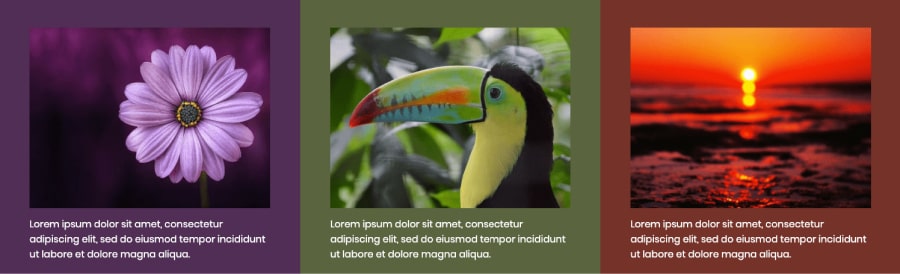
Image Average Color Usage Example

How what is online image average color finder? works

How to use Online Image Average Color Finder?

You can find average color of an image by following these steps.

1.First, drag your image into image upload zone or manually choose from your file system by clicking the upload box.
2.It will be processes within seconds and calculated color as an average color will be showed right below the image you upload.
3.The color will be shown in HEX, RGBA and HSLA format. It will also show whether it is a dark or light color.
4.You can copy the color code of the average color of the image in HEX, RGBA or HSLA format by using "Copy" buttons.