
10016
Tool Categories
Text Tools
Image Tools
CSS Tools
Coding Tools
Color Tools
Social Media Tools
Miscellaneous Tools

Easily find text converters, image editors, and developer utilities.

Image Color Picker

Pick any color from an image using an eyedropper tool with pixel-level precision and magnifier view.

Upload an image to pick colors

Comments

U

Similar Image Tools

See All

Image Average Color Finder

Find the average and dominant colors of an image.

Image Color Extractor

Extract all colors from an image and get detailed color codes.

Image Filters

Apply various filters to images and adjust color balance easily.

What is Online Image Color Picker?

Image Color Picker is a free online tool that allows you to pick any color from an image with pixel-level precision. Simply upload an image, hover over it to see a magnified view of the pixels, and click to pick the exact color you want.

This tool is perfect for designers, developers, and artists who need to extract specific colors from images for their projects. The magnifier feature shows a 9x9 pixel grid around your cursor, making it easy to select the exact pixel color you need.

The tool displays the picked color in multiple formats (HEX, RGB, HSL) so you can use it in any design software or code editor. You can easily copy any color code format with a single click.
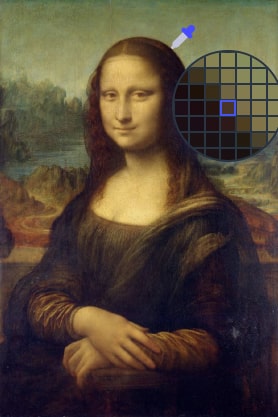
Image Color Picker Example

How what is online image color picker? works

How to use Online Image Color Picker?

Picking colors from an image is very simple. Just follow these steps:

1.Upload an image by clicking the upload area or dragging and dropping your image file.
2.Once the image is loaded, move your mouse over the image. You'll see a circular magnifier showing a zoomed-in view of the pixels around your cursor.
3.The magnifier displays a 9x9 grid of pixels, with the center pixel highlighted in blue. This is the pixel that will be selected when you click.
4.Click anywhere on the image to pick the color at that position. The picked color will be displayed below the image with its HEX, RGB, and HSL values.
5.Click the "Copy" button next to any color format to copy it to your clipboard.
6.You can pick multiple colors by clicking different positions on the image. Each click will update the color information.