 10016
10016Easily find text converters, image editors, and developer utilities.
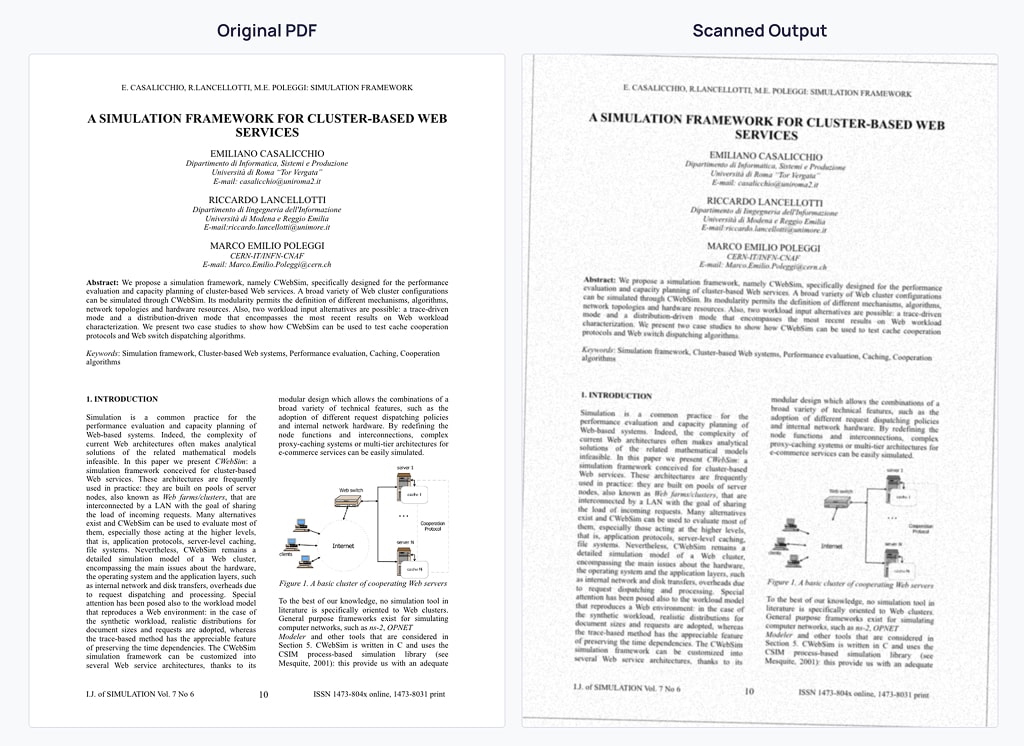
Transform your digital documents to look like they've been physically scanned with customizable effects.
Transform your digital documents to look like they've been physically scanned with customizable effects.
* PDF, DOCX and Image Files (JPEG, PNG, WEBP, GIF) are supported.
Upload a document to see preview
Upload a document to see preview
Scanned PDF Converter is a free online tool that transforms your digital assets (PDF, DOCX or images like JPEG & PNG) to look like they've been physically scanned. This digital solution is ideal for situations where you need a document to have the authentic appearance of being manually scanned.
With customizable settings for rotation, brightness, blur, noise, and border effects, you can achieve a realistic scanned appearance without needing access to physical scanner hardware. The intuitive interface provides a real-time preview so you can see exactly how your document will look before downloading the final result.
Many institutions and processes still require the appearance of scanned documents for authenticity purposes. Our conversion tool bridges this gap by providing a digital alternative that doesn't compromise document quality.
Key Features of Our Scanned PDF Converter Realistic Scanning Effects: Customizable parameters for authentic results Multi-Page Support: Process multiple-page documents with consistent effects Fast Processing: Quick conversion even for large documents Zero Watermarks: Clean output without any tool branding Accessibility: Works on desktop and mobile devices Free to Use: No hidden fees or premium restrictions
Common Use Cases Our document scanner tool is valuable in many scenarios where digitally created PDFs need to appear as if they were physically scanned:
Document Submissions: When digital signatures aren't accepted but scanned signatures are Legacy Systems: For organizations that still require the appearance of physical documentation Educational Purposes: For submitting assignments that require handwritten work Historical Document Recreation: Creating authentic-looking historical documents Visual Demonstrations: For tutorials and educational materials about document processing
Privacy and Security This tool processes all files locally within your browser, ensuring that your data remains private and secure. The only exception is Microsoft Word (.docx) documents, which are converted to PDF format prior to processing to preserve their layout and formatting. However, these DOCX files are not stored on any server; the conversion process occurs entirely on your device. For maximum privacy, especially when handling sensitive or confidential DOCX files, we recommend converting them to PDF using your preferred method before uploading.
Technical Specifications Compatible Formats: PDF documents (all versions), MS Word (.docx), Images (JPEG, PNG, WEBP, GIF) Maximum File Size: Limitless (Browser dependent) for PDFs and images, 5MB for MS Word (.docx) files Processing Speed: Typically 1-5 seconds per page depending on complexity Output Format: Standard PDF with preserved text recognition, or PNG images Mobile Compatibility: Works on modern mobile browsers with sufficient memory Random Rotation: When processing multiple pages, each page can have a random rotation variance of ± 0.5 degrees to simulate real-world scanning conditions.
How what is online scanned pdf converter? works
Is there a difference between a scanned PDF and a regular PDF? Yes, regular PDFs are typically created digitally and contain text layers that are selectable and searchable. Scanned PDFs are images of physical documents and often lack this text layer unless OCR (Optical Character Recognition) has been applied. Our tool maintains the visual appearance of scanned documents while preserving the digital advantages of your original PDF.
Will this affect the text searchability of my document? The conversion process applies visual effects to make your document look scanned, but it doesn't remove the underlying text layer. However, heavy blur effects might impact OCR software's ability to recognize text if the document is processed again later.
Can I convert multiple document at once? Currently, our tool processes one document at a time to ensure optimal performance and quality. For batch processing needs, you can convert each document individually.
How do I get the best results when making a PDF look scanned? For the most authentic scanned look, we recommend using subtle settings: a slight rotation (1-3°), moderate brightness (1.1-1.3), minimal blur (0.2-0.4), and enabling the border option. These settings mimic the imperfections of physical scanning without overdoing the effect.
You can convert your documents to look scanned by following these steps: